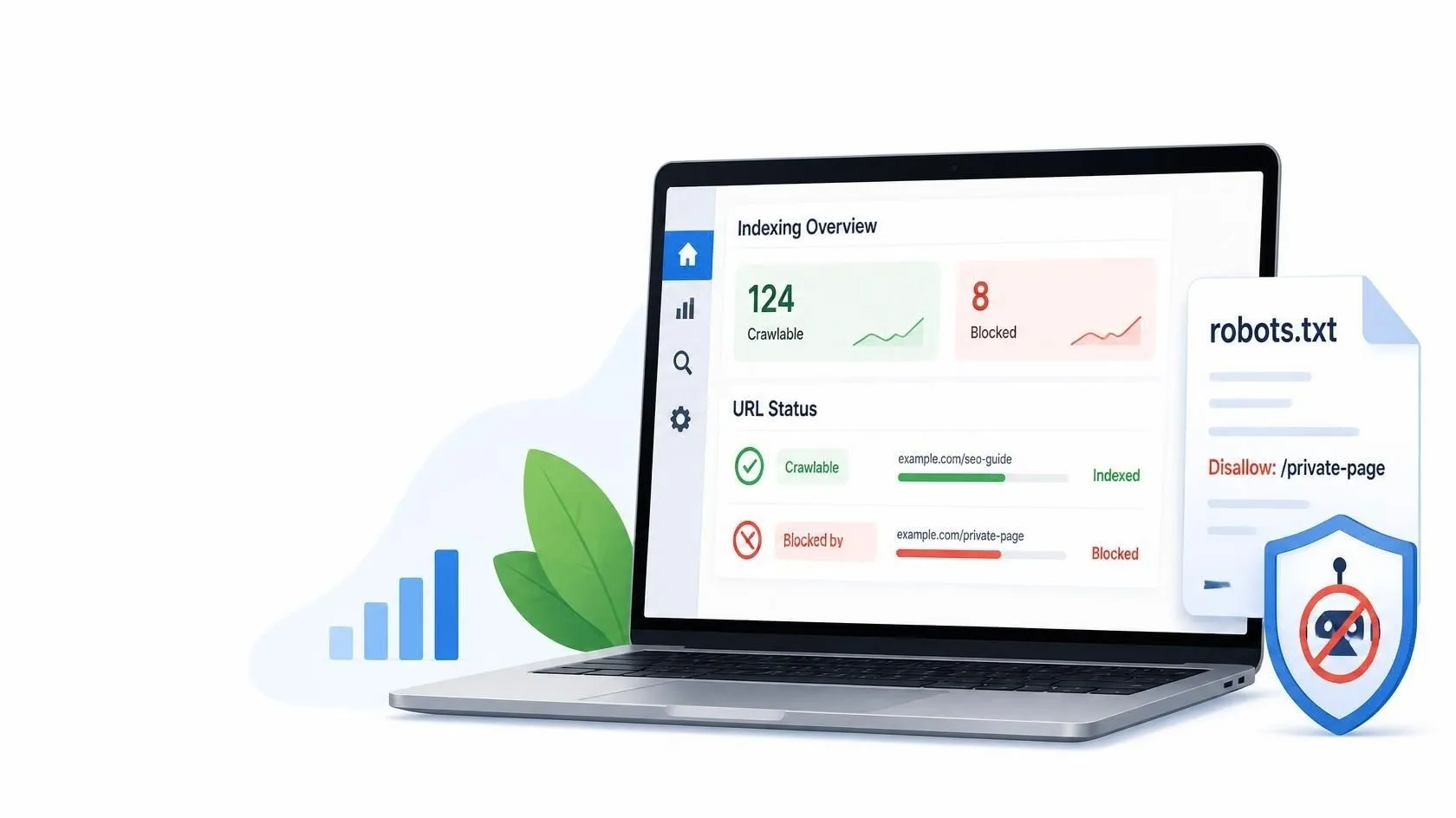
You open Google Search Console, click into the Page indexing report, and there it is: Blocked by robots.txt. Maybe it’s next to a handful of URLs, maybe hundreds. Either way, you want to know one thing. Is this hurting my site, and how do I get rid of it?
Short answer: your robots.txt file is telling Google not to crawl certain URLs, and Google is following those instructions. Sometimes that’s exactly what you want. Often it’s a leftover mistake. This guide shows you how to tell the difference and fix it.
What Blocked by robots.txt actually means
Every website can have a small text file at yoursite.com/robots.txt. It works like a set of house rules for search engine crawlers, listing which parts of your site they may visit and which they should avoid.
When Search Console says a URL is “Blocked by robots.txt,” Googlebot found a rule in that file that stops it from crawling the page. Because Google couldn’t crawl it, it couldn’t read the content, so it generally won’t index or rank the page the normal way.
That’s the key point. The status isn’t a penalty, and it isn’t a sign Google dislikes your site. It’s a mechanical result of a rule you (or a plugin, theme, or developer) put in place.
Two statuses people confuse
Search Console shows two similar-looking messages, and they mean different things.
Blocked by robots.txt: Google has found a rule that prevents it from crawling the URL. This does not necessarily mean the URL can never appear in search results. Google may still index a blocked URL if it discovers it through links or other sources, even though it cannot read the page content.
Indexed, though blocked by robots.txt: Google has indexed the URL without being able to crawl its content. As a result, the search result may not display a normal page description.
The second status surprises people because “blocked” and “indexed” sound contradictory. They aren’t. Blocking crawling and blocking indexing are two separate things, and robots.txt only controls the first one.
Is it always a problem?
No. Some blocked URLs are intentional and healthy. Many sites deliberately block:
Admin areas (like /wp-admin/)
Internal search result pages
Cart, checkout, and account pages
Filter and sorting URLs that create endless duplicate versions of a page
If the blocked URLs in your report are only these kinds of pages, you can relax. You don’t need to chase every item to zero.
It becomes a problem when the blocked URLs are pages you want people to find: blog posts, product pages, service pages, your homepage. That’s when you need to act.
Which blocked URLs should you fix?
URL type: What to do
Important blog post: Find and remove the unintended blocking rule
Homepage or service page: Investigate immediately if it should appear in Google
WordPress admin URL: Usually leave the intentional restriction in place
Internal search or filter URL: Check whether blocking it is part of your intended SEO setup
CSS or JavaScript resource: Check whether blocking it interferes with Google’s ability to render the page
URL you intentionally want excluded from search: Choose the appropriate indexing control rather than relying on robots.txt alone
Always inspect the actual URL and the rule affecting it before changing your robots.txt file. A blocked URL is not automatically an SEO problem.
Step 1: Find which URLs are affected
Open Google Search Console and choose your property.
Go to Indexing → Pages.
Scroll to the “Why pages aren’t indexed” table.
Click Blocked by robots.txt to see the list of URLs.
Take a few minutes to scan the list. Group the URLs mentally: are these important pages, or junk? Note any patterns, like everything under /blog/ or every URL with a certain parameter. Patterns usually point straight to the rule causing the trouble.
Step 2: Check the exact reason with URL Inspection
Click any URL in the list, then choose Inspect URL, or paste the address into the search bar at the top of Search Console.
The inspection result will show that the page isn’t indexed. Open the coverage details and look for the line about whether crawling is allowed. If it says crawling is not allowed because of robots.txt, you’ve confirmed the cause. You can also click Test Live URL to see how Google treats the page right now, which is handy after you make a fix.
For additional guidance, review Google’s technical requirements for appearing in Search to understand the basic conditions a page must meet to be eligible for indexing.
Step 3: Read your robots.txt file
Type your domain followed by /robots.txt into your browser, like yoursite.com/robots.txt. You’ll see plain text. The lines you care about are User-agent and Disallow.
Here’s how to read them:
User-agent: * means the rules apply to all crawlers.
Disallow: / means block the entire site.
Disallow: /private/ means block everything inside that folder.
Disallow: with nothing after it means block nothing.
Allow: makes an exception to a broader Disallow rule.
If you see Disallow: / under User-agent: *, that’s the big one. It tells every crawler to stay away from your whole website. It’s a classic leftover from a development or staging version of the site, where blocking search engines made sense, and it never got removed at launch.
You can also check Search Console’s own robots.txt report (under Settings) to see which robots.txt files Google found, when it last fetched them, and whether it hit any errors or warnings. Google replaced the old robots.txt Tester with this report, so if you’re following an older tutorial that mentions the Tester, that’s why it looks different.
If you want to review other technical issues that can affect crawling and indexing, read our Technical SEO Guide for 2026.
Common causes and how to fix each one
1. “Disallow: /” left over from development
What it looks like:
User-agent: *
Disallow: /
Fix: Remove the Disallow: / line, or change it to a blank Disallow: so nothing is blocked. Save the file and upload it back to your site’s root.
Your robots.txt file can also affect how AI crawlers access your public content. Learn more in our guide to allowing AI crawlers in robots.txt.
2. WordPress search engine visibility is configured incorrectly
WordPress includes a setting that asks search engines not to index your website. If this option is enabled accidentally, it can interfere with your site’s search visibility. However, this setting is different from a robots.txt rule, so it may not be the direct cause of a “Blocked by robots.txt” status.
How to check it:
Log in to your WordPress dashboard.
Go to Settings → Reading.
Find “Discourage search engines from indexing this site.”
If you want your public website to appear in search results, make sure the box is unchecked.
Click Save Changes if you changed the setting.
Then inspect the affected URL in Google Search Console and check your live robots.txt file separately. If the URL remains blocked, identify the specific rule responsible before changing anything else.
Fix: Untick the box and click Save Changes. Then reload your robots.txt and confirm the blocking rule is gone.
3. An SEO plugin or theme edited the file
WordPress SEO plugins, hosting tools, or custom server configurations may affect the rules served in your robots.txt file. A rule copied from another website can accidentally block blog posts, categories, images, or entire directories.
How to fix it:
Open your live https://yourdomain.com/robots.txt file.
Identify the rule that matches the affected URL.
Check whether the rule is intentional and which crawler it applies to.
Review your SEO plugin’s robots.txt settings, if available, and your hosting configuration.
Change only the rule responsible for the unintended block.
Reload the live file and test the affected URL again.
Before making changes, save a copy of your existing robots.txt file. Avoid deleting all rules or restoring defaults without understanding what they control.
4. Blocking folders you actually need
Sometimes a rule is too broad. For example, Disallow: /blog/ would block every post on your blog, and Disallow: /wp-content/ can block images and files Google needs to render your pages properly.
Fix: Narrow the rule so it only covers what you truly want hidden, or delete it. Be especially careful about blocking CSS and JavaScript files. Google needs those to see your pages the way visitors do.
5. Parameter or wildcard rules that go too far
Rules using * can match more than you expect. A pattern meant to block a few filter URLs might also catch real pages.
Fix: Test the specific URL against your rule and tighten the pattern. Remember that robots.txt paths are case-sensitive, so /Blog/ and /blog/ are not the same.
A safe robots.txt example for WordPress
If you’re running a standard WordPress blog and just want a clean, sensible setup, something like this works for most sites:
User-agent: *
Disallow: /wp-admin/
Allow: /wp-admin/admin-ajax.php
Sitemap: https://yoursite.com/sitemap_index.xml
It blocks the admin area, keeps one file open that some themes and plugins rely on, and points crawlers to your sitemap. Replace the sitemap URL with your own. Don’t copy a long, complicated robots.txt from a random website. Rules written for someone else’s setup can quietly damage yours.
Step 4: Confirm the robots.txt Fix in Google Search Console
After correcting an unintended robots.txt rule, follow these steps:
Open your live https://yourdomain.com/robots.txt file and confirm that the updated rules are visible.
Open Google Search Console and inspect the affected URL.
Run the live URL test and check whether Google is now allowed to crawl the page.
If the page is important and eligible for indexing, use Request Indexing in URL Inspection.
Return to the Page indexing report and use Validate Fix for the relevant issue if that option is available.
Google may need time to fetch the updated robots.txt file and recrawl the affected URLs. A successful live test confirms that crawling is allowed; it does not guarantee that the page will be indexed or rank in search results.
Avoid repeatedly submitting the same URL. Monitor the URL Inspection tool and Page indexing report for changes.
If Google can crawl your page but it still receives little organic traffic, see our guide on why an indexed website may not be getting traffic.
An important warning: robots.txt doesn’t remove pages from Google
Here’s a mistake that causes real headaches. Many people think blocking a page in robots.txt keeps it out of search results. It doesn’t. If other sites link to that page, Google can still index the bare URL, which is exactly how you end up with “Indexed, though blocked by robots.txt.”
If you want a page kept out of search results, use a noindex meta tag on the page instead, or password-protect it. And here’s the catch: if you block that same page in robots.txt, Google can’t crawl it, so it never sees your noindex tag. The page may stay indexed.
So the rule of thumb is simple. To stop crawling, use robots.txt. To stop indexing, allow crawling and use noindex.
How Long Does It Take for Google to Recognize the Fix?
There is no fixed timeline for Google to recrawl a URL after you update robots.txt. Google may refresh its cached copy of the file during its automatic crawling process, and affected pages may take additional time to be recrawled.
Use URL Inspection to check whether the page is now crawlable, and monitor the Page indexing report for updates. If Google can crawl the page but still does not index it, investigate other possible causes, including duplicate content, canonical selection, page quality, and whether the URL meets Google’s indexing requirements.
Remember that allowing crawling is only one step. It does not guarantee indexing or higher rankings.
Quick checklist
- Open the Page indexing report and find out exactly which pages are affected
- Decide whether each blocked URL should actually be public
- Open your robots.txt and look for
Disallowrules - Check WordPress Settings → Reading for the discourage option
- Review SEO plugin settings for custom rules
- Fix or remove the wrong rules, then confirm the file is live
- Test the live URL, request indexing, and validate the fix
Frequently Asked Questions
Is Blocked by robots.txt bad for SEO?
Only if the blocked pages are ones you want to rank. Blocking admin pages, carts, and internal search results is normal and often smart.
Can I block just some pages and leave the rest open?
Yes. Robots.txt rules can target specific folders, files, or URL patterns. Just be precise so you don’t catch pages you need.
Should I block everything while my site is under construction?
It’s common, but it’s easy to forget to undo it. If you do it, put a reminder on your launch checklist to remove the block the day you go live.
Does robots.txt hide private information?
No. Anyone can open your robots.txt file, so it can’t keep anything secret.. Never use it to hide sensitive content. Use passwords or proper access controls for that.
Why do I still see the error after fixing it?
Google may not have recrawled your robots.txt yet, or your validation may still be running. Give it a few days, and double-check that your live file really contains the changes.
Is it possible for Google to index a page that robots.txt blocks?
Yes. Google may index a URL without crawling its content if it discovers the URL through external links or other sources. However, it cannot read the blocked page’s content while crawling is disallowed.
How do I identify the robots.txt rule behind a blocked page?
Open your robots.txt file and inspect the rules that apply to the affected URL. Then use Google Search Console’s URL Inspection tool to check whether crawling is allowed. Compare the URL path with the relevant rules before making changes.
Final thoughts
Blocked by robots.txt sounds scarier than it is. It’s usually either a harmless sign that your rules are working or a simple leftover setting that takes a minute to fix. The trick is looking at which URLs are affected before touching anything. Fix the ones that matter, leave the intentional ones alone, and keep in mind that robots.txt controls crawling, not indexing.
Check your file after every site migration, plugin change, or redesign. A glance at that tiny text file can save you weeks of wondering why your pages aren’t showing up.