What Is a WhatsApp Broadcast List?
Learning how to create a WhatsApp Broadcast List is one of the smartest moves you can make for your personal or business communication. Whether you are a small business owner, a teacher, a community organizer, or simply someone who wants to reach many people at once — WhatsApp Broadcast Lists make it simple, fast, and completely private.
If you have ever needed to send the same message to a large group of people — but without the chaos of a group chat — WhatsApp Broadcast Lists are exactly what you need.
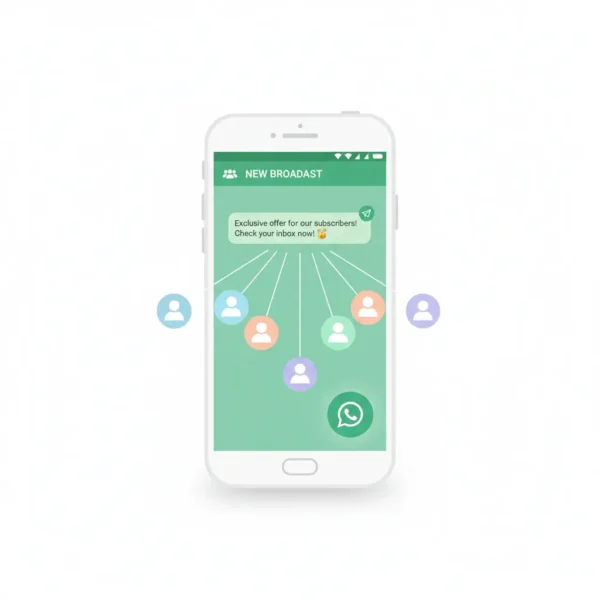
A WhatsApp Broadcast List lets you send a single message to multiple contacts at the same time. The best part? Each person receives it as a private, individual message. They cannot see who else got it, and their replies come directly back to you, not to everyone on the list.
Instead of messaging contacts one by one, a broadcast list lets you deliver the same information to several people in a single action. Whether you are a business owner sharing a new offer, a teacher sending homework reminders, or someone organizing a community event, broadcast lists make the process fast, clean, and professional.
Here is what makes broadcast lists different from group chats:
- In a group chat, everyone can see each other and reply publicly.
- In a broadcast list, each person receives the message privately, as if you sent it just to them.
This single difference makes broadcast lists far more powerful for announcements, promotions, and important updates.
WhatsApp Broadcast List vs Group Chat — Key Differences
Before you start creating your broadcast list, it helps to understand when to use a broadcast versus a group. Many people confuse the two, and choosing the wrong one can hurt your communication.
| Feature | Broadcast List | Group Chat |
|---|---|---|
| Recipients see each other | ❌ No | ✅ Yes |
| Replies visible to all | ❌ No | ✅ Yes |
| Maximum contacts | 256 | 1,024 |
| Best for | Announcements, promotions | Discussions, teamwork |
| Feels personal to recipient | ✅ Yes | ❌ No |
| Recipient must save your number | ✅ Yes | ❌ No |
The key takeaway: use a broadcast list for one-way communication where privacy matters. Use a group chat when you want people to interact with each other.
WhatsApp Broadcast List Limits You Should Know in 2026
Before creating your list, keep these important limits in mind:
- Maximum contacts per list: 256
- Recipients must have your number saved in their phone contacts; otherwise, your message will not reach them.
- You cannot create broadcast lists on WhatsApp Web or Desktop — this can only be done from your phone.
- You can create multiple broadcast lists and manage them separately.
- There is no limit on how many broadcast lists you can create.
For the most up-to-date information on broadcast list rules, visit the official WhatsApp Help Center. These limits apply to the standard WhatsApp and WhatsApp Business apps. If you need to send broadcasts to thousands of contacts, you would need the WhatsApp Business API — but that is beyond the scope of this guide.
How to Create a WhatsApp Broadcast List on Android (Step by Step)
Creating a broadcast list on Android is straightforward. Getting started is simple—just follow these instructions.
Step 1: Open WhatsApp. Launch the WhatsApp app on your Android phone. Make sure you are connected to the internet and logged into the right account.
Step 2: Go to the Chats Screen. You will land on the Chats tab by default. This is where all your conversations appear.
Step 3: Tap the Three-Dot Menu. In the top right corner of the screen, tap the three vertical dots (⋮) to open the menu.
Step 4: Select “New Broadcast” From the dropdown menu, tap “New Broadcast.” This opens a contact selection screen.
Step 5: Add Your Contacts Search for contacts by name or scroll through your list. Tap each contact you want to add. You can add up to 256 contacts. A green checkmark will appear next to each selected contact.
Step 6: Tap the Checkmark to Create the List Once you have selected all your contacts, tap the green checkmark (✔) in the bottom right corner. Your broadcast list is now created.
Step 7: Send Your First Message You will be taken directly to the broadcast chat screen. Type your message and tap the send button (the paper airplane icon). WhatsApp will deliver it privately to every contact on your list.
Your broadcast list will now appear in your Chats tab, just like any other conversation. You can tap it anytime to send new messages or manage your contacts.
Pro Tip: If a contact is not receiving your messages, it usually means they have not saved your number. Ask them to save it, and your future broadcasts will reach them.
How to Create a WhatsApp Broadcast List on iPhone (Step by Step)
The process on iPhone is slightly different from Android. Here is how to do it:
Step 1: Open WhatsApp on Your iPhone Launch the app and go to the Chats screen.
Step 2: Tap “Broadcast Lists” In the top left corner of the Chats screen, you will see the text “Broadcast Lists.” Tap on it.
Step 3: Tap “New List” At the bottom of the screen, tap “New List.” This opens your contacts.
Step 4: Add Contacts to Your List Search for contacts by name or scroll through your list. Tap each person you want to add. You can select up to 256 contacts.
Step 5: Tap “Create” Once you are happy with your selection, tap “Create” in the top right corner. Your broadcast list is now ready.
Step 6: Name Your Broadcast List (Optional) WhatsApp will give your list a default name based on your contacts. You can rename it to something more meaningful, like “Customers,” “VIP Members,” or “Team Updates.”
Step 7: Send Your Message Type your message and hit send. Each contact will receive it as a private chat.
Pro Tip: On iPhone, you can edit a broadcast list anytime by tapping the list name and selecting “Edit Broadcast List.”
How to Create a WhatsApp Business Broadcast List
If you use WhatsApp Business for your company or brand, the broadcast list feature works exactly the same way — but with some extra advantages that make it more powerful for marketing.
Steps to Create a Broadcast List on WhatsApp Business
The steps are identical to the standard WhatsApp app:
- Android: Three-dot menu → New Broadcast → Add contacts → Checkmark
- iPhone: Broadcast Lists → New List → Add contacts → Create
Extra WhatsApp Business Features for Broadcasts
WhatsApp Business gives you tools that the regular app does not have:
1. Quick Replies Set up saved messages that you can insert instantly when replying to responses from your broadcast. This saves huge amounts of time.
2. Labels Organize your contacts with labels like “New Customer,” “VIP,” or “Pending Order.” This helps you send targeted broadcasts to the right people.
3. Business Profile Your messages come with a verified business profile, which includes your business name, category, address, and website. This builds trust with recipients.
4. Catalog Integration You can share your product catalog directly in broadcast messages, making it easier for customers to browse and buy.’
If you want to take your WhatsApp marketing even further,
check out our complete guide on the best AI marketing tools
in 2026 to supercharge your digital strategy.
You can learn more about WhatsApp Business features on the WhatsApp Business official page.
Important: Even on WhatsApp Business, recipients must have your number saved to receive your broadcast messages. This is one of the most overlooked rules that causes businesses to wonder why their broadcasts are not working.
How to Edit or Delete a WhatsApp Broadcast List
Once you have created a broadcast list, you are not stuck with it forever. You can easily manage it at any time.
How to Edit a Broadcast List
On Android:
- Go to your Chats tab and find the broadcast list.
- Tap and hold the broadcast list.
- Tap “Edit Broadcast List.”
- Add or remove contacts as needed.
- Tap the checkmark to save.
On iPhone:
- Go to Broadcast Lists in the top left.
- Select the broadcast list you want to update.
- Tap “Edit Broadcast List” at the top.
- Add or remove contacts.
- Tap “Done.”
How to Delete a Broadcast List
On Android: Tap and hold the broadcast list in your Chats tab → tap “Delete Broadcast.”
On iPhone: Swipe left on the broadcast list → tap “Delete.”
Deleting a broadcast list does not delete the individual conversations with your contacts — it only removes the list itself.
Tips to Get More People to Actually Receive Your Broadcasts
One of the most common problems with broadcast lists is that messages occasionally do not reach every intended recipient. Here is why this happens and how to fix it:
1. Ask Contacts to Save Your Number. This is the number one fix. WhatsApp only delivers broadcast messages to people who have your number saved in their phone contacts. Send a simple message asking people to save your number before adding them to a broadcast list.
2. Keep Your List Organized. Create separate broadcast lists for different audiences. For example: one list for existing customers, one for leads, one for VIP clients. Targeted messages always perform better than generic ones.
3. Send at the Right Time. The best time to send broadcast messages is between 10 AM and 8 PM in your recipient’s local time zone. Messages sent late at night tend to get ignored or blocked, which can affect your WhatsApp account quality.
4. Personalize Your Messages. Even though you are sending to many people, write your message as if you are talking to one person. Avoid corporate-sounding language. Keep it conversational, friendly, and clear.
5. Do Not Overdo It. Sending too many broadcasts too frequently will cause people to block or mute you. Aim for quality over quantity — send only when you have something genuinely useful to share.
6. Use Media Wisely. Images, videos, and voice notes get far more engagement than plain text. Include a relevant image or short video when it adds value to your message.
For a complete overview of growing your brand online,
read our Beginner Digital Marketing Roadmap 2026 —
it covers everything from SEO to social media in one place.
Can You Create a WhatsApp Broadcast List on WhatsApp Web?
This is one of the most common questions people ask — and the answer is no.
WhatsApp Web and WhatsApp Desktop do not support creating or editing broadcast lists. Even in 2026, users may experience this limitation when sending broadcast messages.
However, here is a workaround:
- Create your broadcast list on your phone (using the steps above).
- Access WhatsApp Web — your broadcast list will appear there.
- You can then send messages from the list using WhatsApp Web, even though you cannot create or edit the list there.
Meta has officially confirmed this limitation on their WhatsApp FAQ page. So if you prefer working on your computer, create the list on your phone first, then use WhatsApp Web to manage your messages going forward.
Common WhatsApp Broadcast Problems & Fixes
Problem: Contacts are not receiving my broadcast messages Fix: They have not saved your number. Ask them to add you to their contacts first.
Problem: I cannot find the “New Broadcast” option Fix: Make sure your WhatsApp app is updated to the latest version. The option may be in a slightly different location depending on your app version.
Problem: My broadcast list disappeared Fix: Check if you accidentally deleted it. You will need to recreate it. This is why it is good practice to keep a backup of your contact lists.
Problem: I can only add a limited number of contacts Fix: WhatsApp caps broadcast lists at 256 contacts. If you need to reach more people, create multiple broadcast lists.
Problem: Recipients are replying in a group instead of privately Fix: This means you may have accidentally created a group chat instead of a broadcast list. Delete the group and follow the broadcast list steps again.
Frequently Asked Questions (FAQs)
Q: How many contacts can I add to a WhatsApp Broadcast List? A: You can add up to 256 contacts per broadcast list. However, you can create unlimited broadcast lists, so you can reach as many people as you need.
Q: Can recipients see who else is on the broadcast list? A: No. Each person receives your message as a private chat. They have no idea who else received the same message.
Q: Does the recipient know it is a broadcast message? A: No. The message arrives just like a regular WhatsApp message. There is no label or indicator that says it came from a broadcast list.
Q: What happens if someone replies to my broadcast message? A: Their reply comes directly and privately to you. Other contacts on the list cannot see it.
Q: Can I send images and videos through a broadcast list? A: Yes. You can send text, images, videos, documents, voice notes, and links — anything you can send in a normal chat.
Q: Do I need WhatsApp Business to use broadcast lists? A: No. Broadcast lists are available on both standard WhatsApp and WhatsApp Business. However, WhatsApp Business offers extra features like labels and quick replies that make broadcasts more powerful.
Q: Why are my broadcast messages not being delivered? A: The most common reason is that recipients have not saved your number. They must have your contact saved for the message to reach them.
Q: Can I schedule broadcast messages on WhatsApp? A: WhatsApp does not have a native scheduling feature. You would need to use the WhatsApp Business API with a third-party tool to schedule messages.
Final Thoughts
WhatsApp Broadcast Lists are one of the most underused but powerful communication tools available today. Whether you are running a business, managing a community, or just trying to keep people updated without the mess of group chats, broadcast lists give you a clean and effective way to reach many people at once.
The steps are simple — open WhatsApp, create a new broadcast, add your contacts, and start sending. The real difference comes from how you use it: keeping your lists organized, personalizing your messages, and making sure your contacts have your number saved.
Now that you know exactly how to create and manage WhatsApp Broadcast Lists on Android, iPhone, and WhatsApp Business, you are ready to start communicating smarter.
Want to grow your business even further? Explore our
Digital Marketing Services or book a free consultation
with our team today.
Published by Marketing Glob Hub — Your trusted source for digital marketing tips, SEO strategies, and social media guides.
Tags: WhatsApp, WhatsApp Broadcast, WhatsApp Business, Social Media Marketing, Digital Marketing